

 cs
cs ja
jaIntroduction / Tech-specs
CamScripter App is a unique application running inside an Axis network camera or connectivity hub that allows you to run micro-apps directly on Axis IP devices. In combination with the CamOverlay App, it allows you to embed any data available via network or serial ports into your video as a graphic overlay.
Key Points
- Works seamlessly alongside Axis Events in situations where using Axis Events alone is not enough.
- Allows you to choose from presets or execute tailor-made micro-apps, which are Node.js scripts running directly inside the device.
- Offers open-source libraries on GitHub, including: HttpServer, Camera Vapix, CamStreamerAPI, CamOverlay API, CamOverlay Drawing API, and CamScripter APICamera-Events Generator.
- Enables each micro-app to have its own user interface accessible via the CamScripter App UI.
- Features precise logging within the device log for detailed server reporting.
- Allows the configuration settings of each script to be exported and easily imported into another device.
Technical specifications
- Application type: In-camera ACAP app, uploaded into the device via a web browser (Axis device interface) on the local device IP address.
- Device compatibility: All devices with an ARTPEC-6 processor and higher.
- Free trial: 30 days.
- License: One-time payment or Cloud monthly payment.
- Licensing methods: Via user interface (internet required) or via API.
- API: Supported (Yes).
- UI Languages: English, Spanish, and Japanese.
NOTICE
For more information, please refer to this datasheet.
Help
How to use Axis Camera Station with CamScripter integrations
Many of our scripts are capable of sending data to the Axis Camera Station (ACS). To be able to send data to ACS, you need to modify the registries on the computer where ACS is running. The complete instructions from Axis are here.
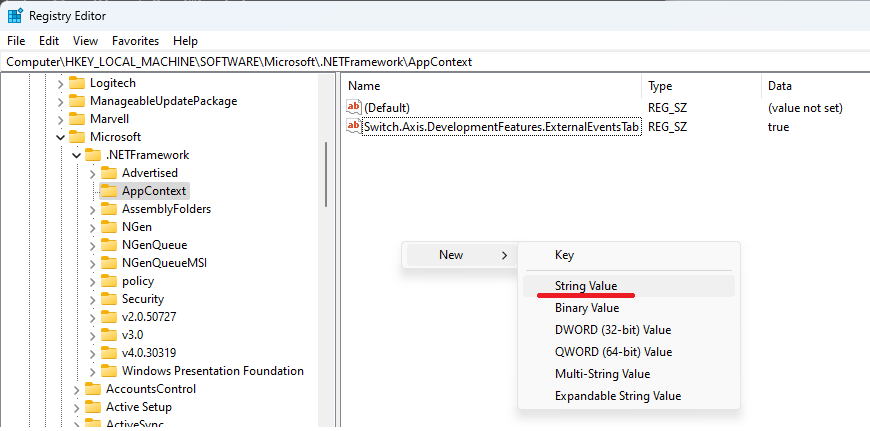
In general, you have to create a new String Value in this path:
Computer\HKEY_LOCAL_MACHINE\SOFTWARE\Microsoft\.NETFramework\AppContext
| You can follow the instructions below or use this file to add the value to your registry automatically. |
Note that the folder name “AppContext” can’t be presented on your computer, and you have to create it.
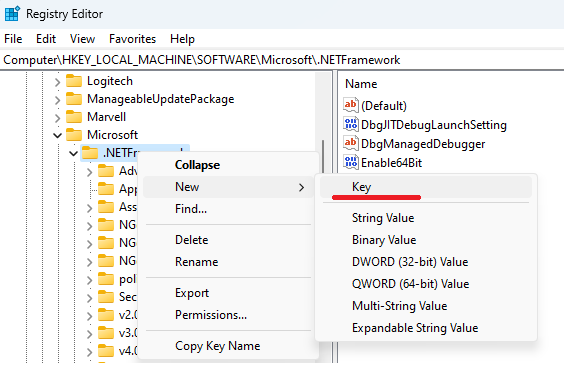
After it create a new String Value with the name Switch.Axis.DevelopmentFeatures.ExternalEventsTab and modify its value to “true”.
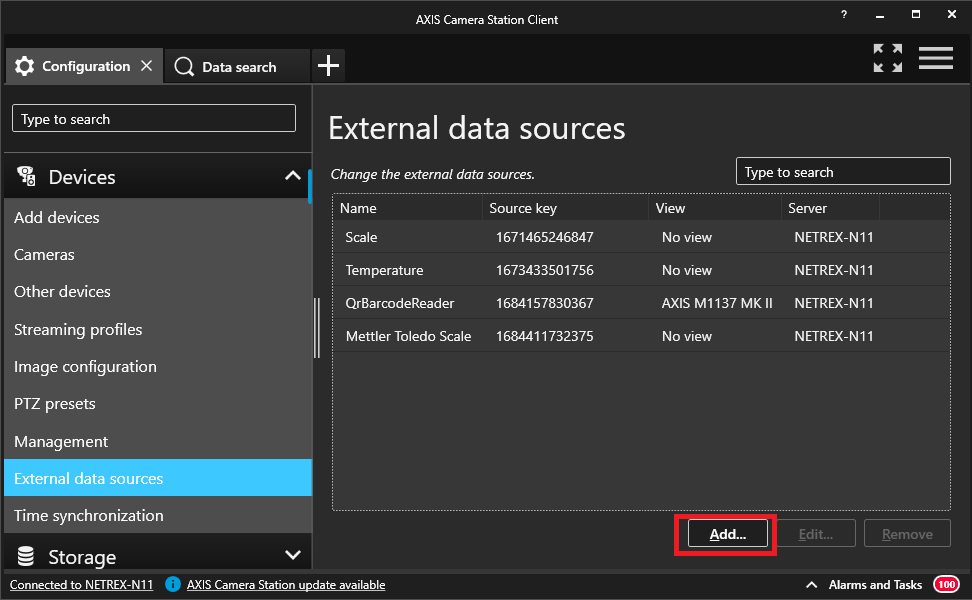
Once the registries have been modified, restart the ACS application and a new add button will appear in the External data sources section.
Data inserter
For data entry, the main system administrator in the domain usually does not work and a new user must be created specifically for ACS.
Filtering in ACS
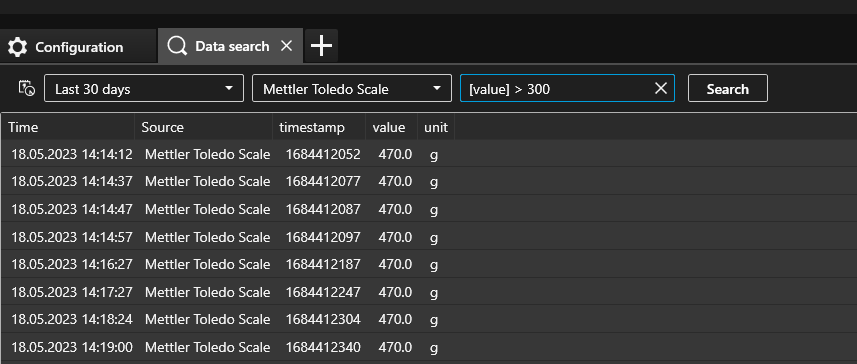
Use regular expressions to filter the values in ACS. The name of the column with the filtered value must always be in square brackets.
Other possible problems
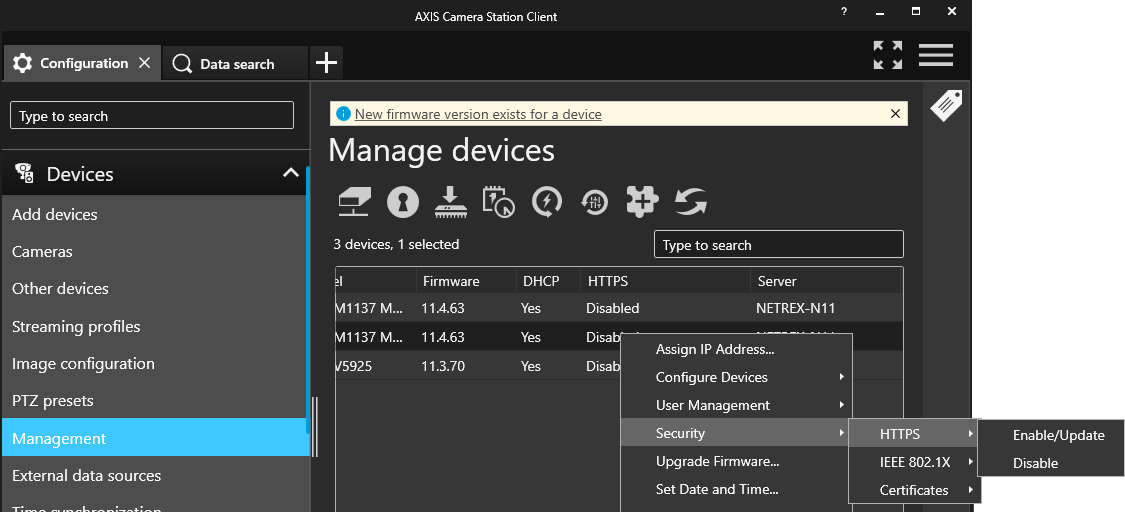
ACS sets the camera to HTTPS if you want to keep it with this setup, set up HTTPS (insecure) in the script for CamOverlay App settings.
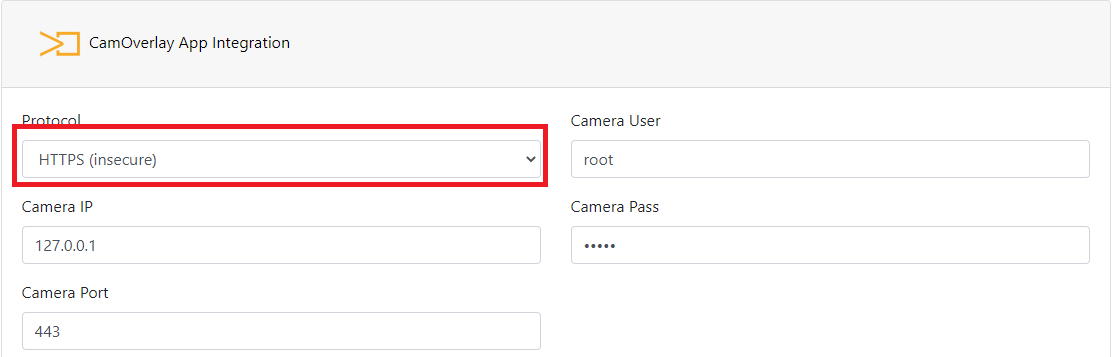
If you want to switch the camera back to HTTP, do it in Devices > Management
Where I can find some example apps of CamScripter app?
Our example apps are available on our GitHub here.
How can I load a micro-application to the camera?
Upload the whole zip file via the CamScripter App user interface and start it.