cs
cs ja
jaHow to setup Axis camera as a webcam for online conferencing via NDI®|HX Plugin App
Unleash the full potential of your Axis camera and enjoy seamless integration with popular platforms like Google Meets, Microsoft Teams, Zoom, and more. Elevate your virtual meetings and classrooms with superior image quality and PTZ capabilities, all without needing additional hardware.
NOTICE
The NDI®|HX Plugin for Axis cameras is compatible only with firmware versions 10.9 through 11.99, and updating to AXIS OS 12.0 or higher will cause the plugin to stop working.
More about the solution and advantages you learn in this PDF leaflet:

EASY STEPS TO START
Instructions on How to use your Axis camera as a webcam on your computer:
STEP 1
Begin by downloading the NDI|HX Plugin for Axis cameras from the Camstreamer website. This is an in-camera app that needs to be installed on your Axis camera. Before downloading, make sure to check its compatibility.
STEP 2
Install the app on your camera and enter the license number you receive after purchasing it via [email protected].
STEP 3
Open the app and set up the NDI broadcast through its user interface.
STEP 4
Next, visit ndi.video and download the NDI Tools, which is a free set of Windows/Mac apps from Newtek, the company that created NDI.
STEP 5
Launch the NDI Tools on your computer and select “NDI Virtual Input” (for Mac) or “NDI Webcam” (for PC). This will enable you to choose from all the Axis cameras with the NDI Plugin activated on your local network. If you’re using the PC version, you can use up to four webcams simultaneously from any NDI sources.
On Mac OS start NDI and follow in a top left menu:
On PC use the right bottom icon:
STEP 6
Finally, select your video source on your preferred conference software such as Google Meets, Microsoft Teams, Webex, Zoom, etc. You’ll now be able to use your Axis camera as a webcam.
What’s next?
Check the camera here, buy the NDI®|HX Plugin and start with a first step of our instructions.
How to install NDI HX Plugin on Axis camera
Purchase a license by contacting [email protected].
After purchasing the license, download a compatible version of the application from this link https://camstreamer.com/download-app
Install the downloaded application directly on the Axis camera in the Apps section.
Make sure the camera has at least FW 10.9 before installing (new FW can be downloaded here https://www.axis.com/support/firmware).
After installing the application, activate the code in the Apps section (“Activate license automatically”).
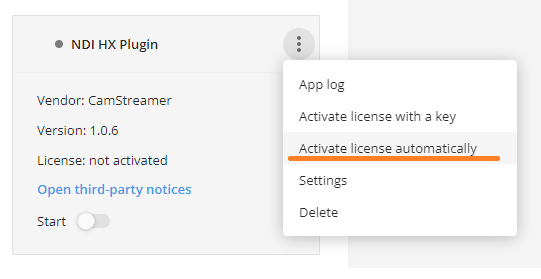
For offline activation use this link https://www.axis.com/support/license-key-registration#/registration and activate the app with the generated key.
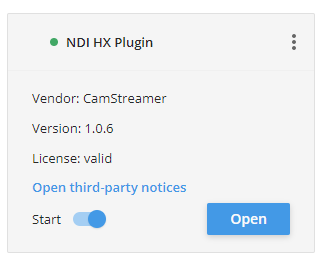
Start the application and use the Open button to open the user interface with the settings.
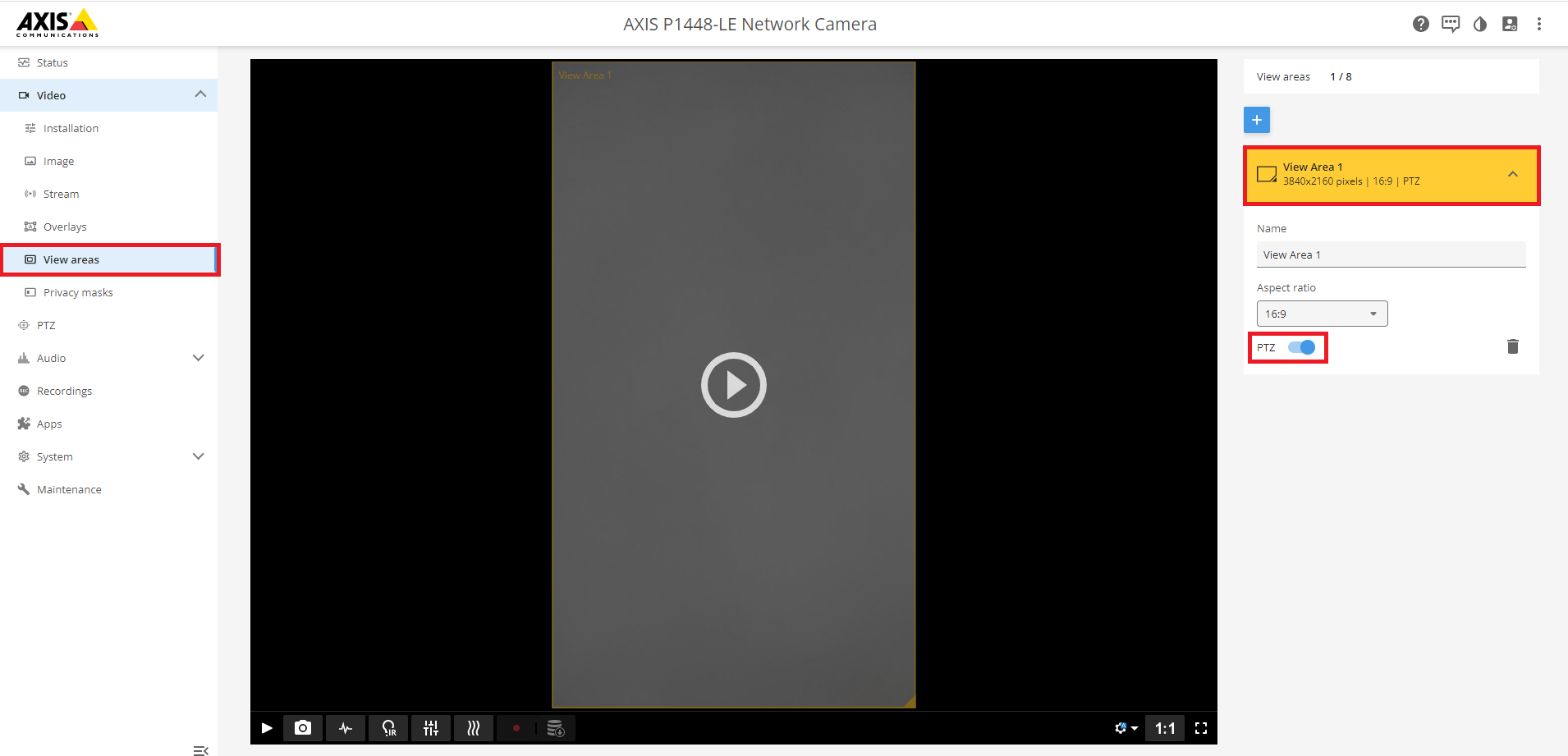
How to enable PTZ functionality for the NDI HX Plugin for non-PTZ/Static Axis cameras
To enable the PTZ option to function correctly with the NDI/HX Plugin with non-PTZ/static cameras, please enable the following:
- on the Axis GUI select the View Area tab you intend to use for NDI streaming
- select the View Area you intend to use for NDI streaming
- enable the PTZ option